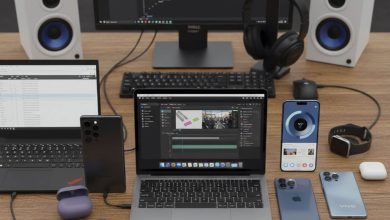
How to Connect Airpods to Two Devices at Once


In the fast-paced digital ecosystem we navigate today, the ability to transition seamlessly between devices is no longer a luxury—it is a necessity. Whether you are switching from a professional Zoom call on your MacBook to a personal podcast on your iPhone, Apple’s ecosystem offers sophisticated solutions for audio multitasking.
However, many users remain unaware of how to fully leverage these features. This guide illuminates the process of connecting your AirPods to two devices, ensuring your auditory experience remains uninterrupted.
How to Connect Airpods to Two Devices at Once
The Magic of Automatic Switching
For those fully immersed in the Apple ecosystem, the “Automatic Device Switching” feature is a masterclass in functional design. This allows your AirPods to intelligently detect which device is currently playing audio and switch the connection without manual intervention.
Requirements for Success:
To utilize this feature, ensure all your devices (iPhone, iPad, and Mac) are signed into the same Apple Account (iCloud). Your hardware should also be running the latest operating system versions—iOS 14, iPadOS 14, or macOS Big Sur and later.
To utilize this feature, ensure all your devices (iPhone, iPad, and Mac) are signed into the same Apple Account (iCloud). Your hardware should also be running the latest operating system versions—iOS 14, iPadOS 14, or macOS Big Sur and later.
How to Enable It:
- On iPhone/iPad: Navigate to Settings > Bluetooth. Tap the “i” icon next to your AirPods. Select Connect to this iPhone and ensure “Automatically” is checked.
- On Mac: Go to System Settings > Bluetooth. Click Options next to your AirPods and set Connect to this Mac to “Automatically.”
Once configured, your AirPods will “follow” you. If you finish a movie on your iPad and pick up your iPhone to answer a call, the audio transitions instantly.
Audio Sharing: Two Pairs of AirPods, One Device
If your goal is not to switch between your own devices, but rather to share a single audio source with a friend (connecting two sets of AirPods to one iPhone or iPad), Apple offers the Audio Sharing feature.
- Connect your first pair of AirPods to your iPhone and start playing audio.
- Open the Control Center (swipe down from the top-right corner).
- Tap the AirPlay icon (the triangle with circular waves).
- Select “Share Audio.”
- Hold your friend’s AirPods (inside their case with the lid open) near your device. Once detected, tap “Share Audio” again.
Both listeners can now enjoy the same music or movie, with independent volume control for each set of AirPods.
Connecting to Non-Apple Devices (Multipoint Workarounds)
AirPods do not support “Multipoint” technology in the traditional sense used by brands like Sony or Bose, which allows simultaneous connection to two different platforms (e.g., an Android phone and a Windows laptop).
However, you can still switch manually. To move from a PC to an iPhone, you must select “Connect” in the Bluetooth settings of the target device. The AirPods will disconnect from the first and pair with the second. While not as fluid as the Apple-to-Apple transition, it remains a reliable method for cross-platform users.
Troubleshooting Your Connection
If your devices fail to hand off the audio smoothly, consider the following quick fixes:
- Update Firmware: Ensure your AirPods are updated by keeping them in their charging case near your iPhone while connected to Wi-Fi.
- Toggle Bluetooth: A simple “off and on” cycle of Bluetooth on your devices often resolves handshake errors.
- Reset AirPods: If all else fails, hold the setup button on the back of the AirPods case until the status light flashes amber, then white, to reset the pairing memory.
Final Thoughts
The sophistication of AirPods lies in their ability to disappear into the background of our lives, providing sound exactly when and where we need it. By mastering automatic switching and audio sharing, you transform your earbuds from simple speakers into a powerful tool for productivity and social connection.
As we continue to balance multiple screens and tasks, understanding these nuances ensures that your technology works for you, rather than the other way around.