How to Connect Airpods to 2 Devices at The Same Time


In the modern digital landscape, where multitasking is the heartbeat of productivity, the ability to jump between a smartphone and a laptop is essential. A common question echoing among tech enthusiasts is whether Apple’s iconic AirPods can truly maintain a bridge between two worlds at once.
Understanding how to manage these connections requires a blend of knowing Apple’s proprietary “Automatic Switching” and the mechanics of “Audio Sharing.” This guide breaks down the technicalities into a simple, actionable roadmap for every user.
How to Connect Airpods to 2 Devices at The Same Time
The Ecosystem Advantage: Automatic Device Switching
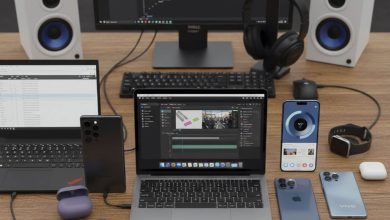
For users deeply integrated into the Apple environment, the concept of connecting to two devices isn’t about a static dual-connection, but rather an intelligent “handoff.” This feature, known as Automatic Device Switching, allows your AirPods to remain paired with all your devices simultaneously, intelligently shifting the audio focus based on your activity.
The Prerequisites for a Fluid Experience:
To enjoy this invisible tether, your devices (iPhone, iPad, and Mac) must be signed into the same Apple Account. Furthermore, your hardware must be updated to the latest software—specifically iOS 14, macOS Big Sur, or later versions.
To enjoy this invisible tether, your devices (iPhone, iPad, and Mac) must be signed into the same Apple Account. Furthermore, your hardware must be updated to the latest software—specifically iOS 14, macOS Big Sur, or later versions.
Step-by-Step Configuration:
- On your iPhone/iPad: Open Settings > Bluetooth. Tap the “i” (information) icon next to your AirPods. Ensure that the option “Connect to this iPhone” is set to “Automatically.”
- On your Mac: Navigate to System Settings > Bluetooth. Click on Options next to your AirPods name and set “Connect to this Mac” to “Automatically.”
Once these settings are active, you can listen to music on your Mac, and the moment a call rings on your iPhone, the AirPods will instantly prioritize the phone call without you touching a single button.
Shared Auditory Moments: Audio Sharing
If your definition of “two devices” involves sharing one audio source with another person’s AirPods, Apple provides a specialized feature called Audio Sharing. This is the digital equivalent of a headphone splitter, allowing two different pairs of AirPods to connect to a single iPhone or iPad.
How to Activate Shared Audio:
- Connect your primary AirPods to your device and begin your media playback.
- Access the Control Center (swipe down from the top-right corner).
- Tap the AirPlay icon (the triangle with circles).
- Select “Share Audio” and hold the second pair of AirPods or their case near your device.
- Follow the on-screen prompt to sync both sets.
The Cross-Platform Challenge: AirPods with Non-Apple Devices
Many users wonder if they can achieve this “multipoint” connection between an Android phone and a Windows laptop. Technically, AirPods use standard Bluetooth protocols, but they lack the proprietary “multipoint” chip found in some competitors.
To “switch” between non-Apple devices, you must manually select “Connect” in the Bluetooth menu of the second device. While it isn’t “simultaneous” in a literal playback sense, the AirPods can store the pairing information for both, making the manual jump relatively quick.
Troubleshooting the Connection
Technology, while advanced, occasionally encounters “handshake” hurdles. If your AirPods fail to switch:
- Check the Apple Account: Ensure every device is on the exact same iCloud account.
- Firmware Updates: AirPods update their firmware automatically when plugged into power near your iPhone. Ensure they are up to date.
- The Reset Method: If all else fails, hold the button on the back of the AirPods case until the light flashes amber then white to reset the pairing logic.
Final Perspective
The brilliance of AirPods lies not just in their sound, but in their ability to understand user intent. By mastering automatic switching and audio sharing, you unlock a level of convenience that makes cable-tangled headphones feel like ancient history. Whether you are professional navigating multiple meetings or a student juggling lectures and leisure, these features ensure your soundscape is always where you need it to be.