How to Connect Your Phone to Your TV Wirelessly Android Without WiFi


In today’s digitally connected world, sharing content from your Android phone on a larger screen such as your TV is a common desire. While WiFi-based casting and mirroring are popular, there are effective ways to connect your phone wirelessly without relying on a WiFi network. This guide explains how to achieve this using reliable, built-in technologies on Android devices and compatible TVs.
Understanding Wireless Connection Without WiFi
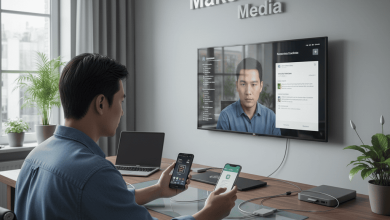
Typically, wireless screen sharing depends on a shared WiFi network. However, technologies like Miracast and WiFi Direct offer an alternative by creating a direct, peer-to-peer connection between your Android phone and the TV. This method bypasses the need for an external router or internet connection.
How to Connect Your Phone to Your TV Wirelessly Android Without WiFi
1. Enable Screen Mirroring on Your Android Phone
Most modern Android phones have an integrated screen mirroring feature known as “Cast,” “Wireless Display,” or “Smart View” depending on the manufacturer. To activate:
-
Navigate to Settings on your phone.
-
Locate the option labeled Cast, Screen Mirroring, or Wireless Display. You can also swipe down the notification panel twice to reveal the quick settings and find the Cast icon.
-
Turn on this feature to enable your phone to search for compatible devices.
2. Prepare Your TV for Connection
Your TV should support Miracast or WiFi Direct technology to receive the wireless signal without WiFi. Many smart TVs from brands such as Samsung, Sony, and LG include this feature. If not natively supported, an external Miracast adapter (e.g., Microsoft Wireless Display Adapter) can be connected via HDMI.
-
Turn on your TV and navigate to the input or screen mirroring source.
-
Enable the TV’s wireless display feature, often found in network or screen sharing settings.
3. Connect the Devices
-
From your phone’s Cast menu, select the TV or adapter listed among available devices.
-
Once selected, your phone and TV establish a direct connection using WiFi Direct or Miracast standards.
-
The phone’s screen will then be mirrored onto the TV, allowing you to enjoy videos, photos, games, and apps on the big screen effortlessly.
Additional Tips for a Smooth Experience
-
Ensure both devices have sufficient battery life or are connected to power sources.
-
Keep the distance between your phone and TV within a comfortable wireless range (usually up to 30 feet).
-
Disable any VPNs or network restrictions that might interfere with device discovery.
-
If the TV does not appear, verify Miracast compatibility or consider using a compatible wireless display adapter.
Connecting your Android phone to your TV wirelessly without WiFi is practical and straightforward through Miracast or WiFi Direct technology. This solution is ideal for situations where WiFi is unavailable or restricted, offering a seamless way to expand your viewing experience to larger screens. By following this guide, anyone can master this technology to enhance entertainment, education, and work presentations with ease.
Read also other articles :