Is It Possible to Connect AirPods to Two Devices at Once? A Comprehensive Guide to Seamless Audio


In an era defined by multi-device workflows, the ability to transition between gadgets without missing a beat is more than just a convenience—it is a digital necessity. For AirPods users, one question consistently arises: Is it possible to connect to two devices at once?
The answer is both sophisticated and nuanced. While AirPods handle multi-device connectivity differently than traditional Bluetooth headphones, their integration within the modern ecosystem offers a fluid experience that often feels like magic.
Understanding the Concept of “Multipoint” vs. “Automatic Switching”
In the world of audio technology, “Multipoint” refers to a headphone’s ability to stay actively connected to two different Bluetooth sources, such as an Android phone and a Windows laptop, simultaneously.
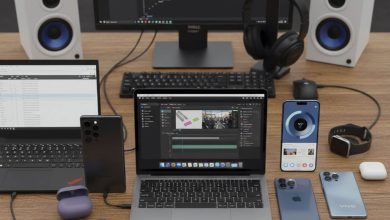
AirPods utilize a more refined, proprietary version of this technology. Instead of maintaining a clunky dual-active connection, Apple employs Automatic Device Switching. This feature allows your AirPods to intelligently “follow” your active task across your iPhone, iPad, Mac, and Apple Watch.
Is It Possible to Connect AirPods to Two Devices at Once?
The Seamless Transition: How It Works
If you are listening to music on your Mac and a call comes into your iPhone, the AirPods intelligently recognize the priority shift. The moment you answer, the audio source migrates instantly.
To ensure this feature works flawlessly, you must meet three criteria:
- Same Apple Account: All devices must be signed into the same iCloud/Apple Account.
- Updated Software: Ensure your devices are running at least iOS 14, iPadOS 14, or macOS Big Sur.
- H1 or H2 Chip: This feature is supported by AirPods (2nd & 3rd Gen), AirPods Pro, and AirPods Max.
To verify this on your iPhone, go to Settings > Bluetooth, tap the ‘i’ icon next to your AirPods, and ensure that “Connect to this iPhone” is set to “Automatically.”
Connecting to Non-Apple Devices
What happens if you use an Android phone and an iPad? In this scenario, the “Automatic Switching” magic is absent because it relies on the Apple-specific ecosystem. However, you can still manually switch. AirPods can remember multiple pairings; you simply need to select “Connect” in the Bluetooth menu of the device you wish to use. The AirPods will disconnect from the previous device and latch onto the new one without requiring a full re-pairing process.
Shared Experiences: Audio Sharing
Sometimes, the goal isn’t to connect one pair of AirPods to two devices, but rather to connect two pairs of AirPods to one device. This is perfect for watching a movie with a partner on a plane or sharing a new playlist.
By accessing the Control Center on your iPhone and tapping the AirPlay icon, you can select “Share Audio.” This allows two separate AirPods users to listen to the same source simultaneously, each with independent volume control—a testament to Apple’s focus on user-centric engineering.
Troubleshooting Connectivity Hurdles
If your AirPods are failing to switch between devices, the culprit is often a minor software glitch. A quick toggle of your Bluetooth settings or a simple restart of the devices usually resolves the “handshake” error. For persistent issues, resetting your AirPods—by holding the setup button on the case until the LED flashes amber—will clear the memory and allow for a fresh, stable connection.
While AirPods do not support traditional “Multipoint” connectivity for third-party hardware, they offer a far more intuitive experience within the Apple framework. By leveraging cloud-based pairing and intelligent priority sensing, AirPods redefine what it means to stay connected in a fragmented digital world.
Whether you are a power user juggling professional calls or a casual listener switching from a tablet to a phone, mastering these connection nuances ensures that your audio experience remains as fluid as your lifestyle.