How to Connect Your Smart TV to Your Phone WiFi


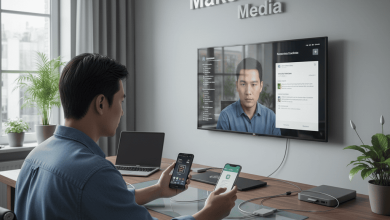
Smart TVs gain instant internet access by linking to your phone’s WiFi hotspot, turning mobile data into a lifeline for streaming when home networks falter. This tethering method shares your phone’s cellular connection securely, supporting 4K playback on brands like Samsung, LG, and Android TV models. Both Android and iPhone users activate this feature effortlessly through built-in settings.
How to Connect Your Smart TV to Your Phone WiFi
Activate Phone Hotspot Feature
On Android, swipe down twice for Quick Settings, tap the Hotspot icon, or navigate to Settings > Network & Internet > Hotspot & Tethering > Wi-Fi Hotspot and toggle it on—customize the network name and password for security. iPhone owners go to Settings > Personal Hotspot, enable Allow Others to Join, and note the Wi-Fi password displayed prominently. Keep mobile data active to sustain the connection without draining reserves prematurely.
Access TV Network Settings
Grab your smart TV remote and press Home or Menu to enter Settings > Network > Wi-Fi or Wireless Connection—most models scan automatically for nearby networks. Select your phone’s hotspot name from the list, enter the password exactly as set, and confirm connection; a success message confirms linkage within 30 seconds. Samsung users find this under Settings > General > Network > Open Network Settings, while LG paths lead through All Settings > Network > Wi-Fi Connection.
Verify and Optimize Connection
Test by launching Netflix or YouTube on the TV—smooth buffering signals strong tethering, with speeds mirroring your cellular plan. Monitor phone data usage via its settings to avoid overages, and position devices close for optimal signal strength up to 30 feet. Disable hotspot when idle to conserve battery, reactivating as needed for on-demand streaming sessions.
Switch to Screen Mirroring Bonus
Once connected, enhance with mirroring: Android taps Cast in Quick Settings to detect the TV, while iPhone uses AirPlay from Control Center for seamless duplication. This combo delivers phone apps directly to the big screen, perfect for gaming or shared viewing without cables. Adjust TV audio output if sync lags occur during high-motion content.