How to Connect Android TV with Mobile Screen Mirroring Step by Step

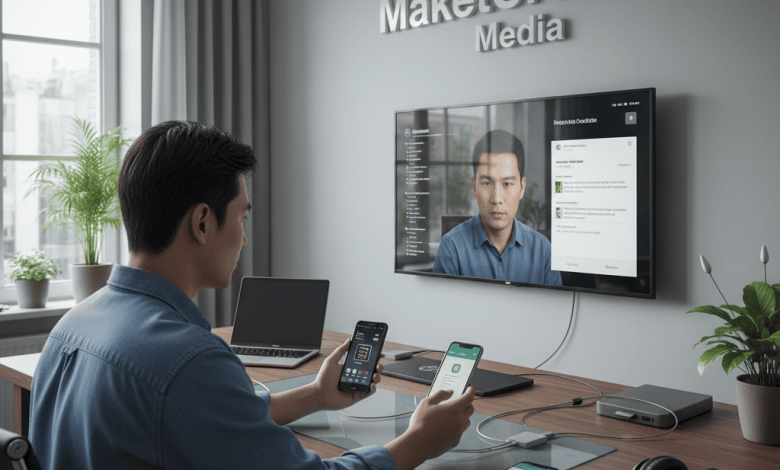
In today’s digital age, sharing your mobile screen on a bigger display like an Android TV enhances entertainment, presentations, and overall user experience. Screen mirroring allows you to display your Android phone’s content wirelessly on your TV, enabling seamless viewing of videos, photos, games, and apps. This article serves as a comprehensive guide to help everyone understand how to connect their Android TV with mobile screen mirroring efficiently and effortlessly.
Understanding Screen Mirroring Technology
Screen mirroring is a wireless technology that replicates your mobile device’s screen onto your TV in real time. The most common protocols supporting this feature are Miracast and Chromecast. Miracast uses Wi-Fi Direct to establish a connection between your Android phone and TV without requiring an internet connection, while Chromecast relies on both devices being connected to the same Wi-Fi network and uses the Google Home app to stream content.
Preparing for Screen Mirroring
Before starting, ensure the following:
-
Both your Android phone and Android TV are connected to the same stable Wi-Fi network.
-
Your Android TV supports screen mirroring natively through Miracast or Chromecast technology.
-
For enhanced compatibility, keep your phone’s software and TV firmware updated.
How to Connect Android TV with Mobile Screen Mirroring
-
Enable Screen Mirroring on Your Android TV
-
Navigate to your TV’s settings menu.
-
Find and select the “Screen Mirroring,” “Cast,” or “Wireless Display” option.
-
Turn on the screen mirroring feature to allow your TV to become discoverable by your phone.
-
-
Connect Your Android Phone
-
Open Settings on your Android phone.
-
Select “Connected Devices” or “Connection Preferences.”
-
Tap on “Cast,” “Screen Cast,” or similar terminology.
-
From the list of available devices, select your Android TV.
-
-
Establish the Connection
-
Your phone will attempt to connect, and the TV screen may prompt to accept the connection.
-
Once accepted, your phone’s screen will be mirrored onto the TV instantly.
-
Alternate Methods
-
Using Google Chromecast
-
If your TV does not natively support Miracast, plug a Chromecast device into the TV’s HDMI port.
-
Download and open the Google Home app on your phone.
-
Tap “Cast Screen” and select your Chromecast device.
-
Your phone screen is now shared wirelessly to the TV.
-
-
Utilizing HDMI Cable with Adapter
-
For a wired connection, use an HDMI cable with a USB-C or micro USB to HDMI adapter.
-
Connect your phone physically to the TV using the cable and adapter.
-
Select the HDMI input on your TV.
-
Your phone’s display will be mirrored to the TV with minimal latency.
-
Tips for Optimal Screen Mirroring Experience
-
Use a strong and stable Wi-Fi connection to avoid lag or disconnection.
-
Keep your devices updated to access the latest features and fixes.
-
Close unnecessary apps on your phone to improve mirroring performance.
-
Adjust TV and phone display settings for an optimal viewing experience.
Connecting an Android phone to an Android TV via screen mirroring is a straightforward process that anyone can master with the right guidance. Whether you use native screen mirroring features, Chromecast, or a wired connection, these methods expand your entertainment possibilities by projecting your mobile content elegantly onto the big screen. Ensure your devices are compatible and properly configured, and enjoy a seamless screen sharing experience.
Read also other articles :