How to Connect Your Android Phone to Your TV Without WiFi


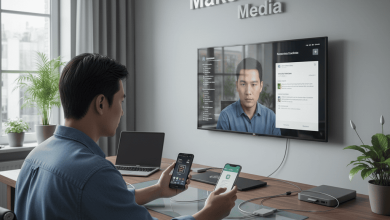
Wired connections offer the most reliable way to mirror your Android phone’s screen onto a TV when WiFi isn’t available, bypassing networks entirely for lag-free viewing. HDMI cables with USB-C or micro-USB adapters provide plug-and-play simplicity, while alternatives like MHL or SlimPort suit specific devices. These methods deliver full screen mirroring for videos, games, or presentations on any TV with an HDMI input.
How to Connect Your Android Phone to Your TV Without WiFi
Verify Phone Display Output Support
Check if your Android supports video output through its port using apps like “USB-C TV” or “MHL Checker” from Google Play—most modern USB-C phones with DisplayPort Alt Mode work seamlessly. Confirm your TV has an available HDMI port and power on both devices beforehand. Phones lacking native support may require a compatible adapter like USB-C to HDMI for Samsung Galaxy S series or Google Pixel models.
Method 1: USB-C to HDMI Connection
Acquire a USB-C to HDMI adapter or cable certified for your phone model to ensure 4K resolution and charging passthrough. Plug one end into your phone’s USB-C port and the HDMI end into the TV, then switch the TV input to that HDMI source. Your phone screen mirrors automatically within seconds—no apps or settings changes needed, though pulling down the notification shade lets you adjust orientation or “Mirror Display” if options appear.
Method 2: Micro-USB with MHL or SlimPort Adapter
For older Androids with micro-USB, test MHL compatibility via your phone’s specs or an app; insert the MHL adapter into the port, connect HDMI to TV, and select the input. SlimPort adapters follow identical steps for supported devices like older LG or Sony models, transmitting both video and audio directly. Expect crisp 1080p output up close, ideal for non-smart TVs without wireless capabilities.
Method 3: Wireless Direct via Miracast Dongle
Purchase a Miracast receiver dongle, plug it into the TV’s HDMI port, and power it on to create a direct peer-to-peer link. On your Android, swipe down to Quick Settings, tap “Cast” or “Smart View,” enable WiFi Direct if prompted, and select the dongle from the list—mirroring starts instantly without internet. This setup supports most Android 4.2+ devices for fluid playback up to 30 feet away.
Quick Fixes for Connection Glitches
If no signal appears, restart both phone and TV, reseat cables firmly, or toggle Airplane Mode on your phone before reconnecting. Update your phone’s firmware through Settings > System > System Update for better adapter compatibility, and test different HDMI ports. These steps restore display in under a minute, ensuring dependable big-screen access anywhere.