How to Connect Your Phone to Your Samsung TV Without WiFi

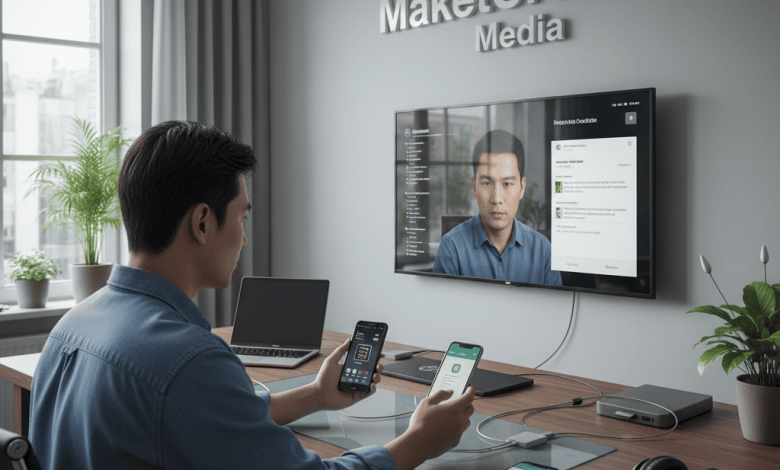
Samsung TVs pair effortlessly with phones through wired HDMI adapters or direct screen mirroring protocols like Miracast, delivering high-definition content without network dependency. These methods ensure stable video and audio transmission for movies, photos, or games on models from QLED to older LED series. Both Android and iPhone users benefit from plug-and-play simplicity on TVs running Tizen OS.
How to Connect Your Phone to Your Samsung TV Without WiFi
Gather Essential HDMI Equipment
Select a USB-C to HDMI adapter for modern Android phones or Lightning Digital AV Adapter for iPhones, paired with a standard HDMI cable supporting 4K if desired. Verify your Samsung TV’s HDMI port availability—most feature multiple labeled inputs like HDMI 1 or ARC. Charge your phone fully to sustain mirroring sessions lasting hours without interruptions.
Wired HDMI Connection Steps
Attach the adapter to your phone’s charging port, then connect one HDMI cable end to the adapter and the other to an open TV HDMI port. Grab the Samsung remote, press the Source or Input button, and cycle to the matching HDMI channel—your phone screen duplicates instantly. Swipe down on Android for rotation lock or iPhone notifications to tweak display mirroring if the image appears sideways.
Activate Miracast Screen Mirroring
On your Samsung TV, press Home > Source > Screen Mirroring (or Smart View on newer models) to enter detection mode. Swipe down your phone’s Quick Settings panel, tap Cast, Smart View, or Wireless Display, and select your TV from nearby devices—WiFi Direct handles the peer-to-peer link automatically. Confirm the connection prompt on both screens for lag-free streaming up to 10 meters away.
Explore USB Media Transfer Option
Plug a USB-C or micro-USB cable from phone to TV’s USB port, then pull down Android notifications to select File Transfer or Media Output mode. Navigate to the TV’s Source menu, choose USB input, and browse phone galleries or videos directly—ideal for photo slideshows without full screen duplication. iPhones require adapters for similar media playback via USB.
Resolve Typical Setup Hurdles
Restart TV and phone if no detection occurs, or reseat cables firmly for HDMI drops. Update phone display drivers through Settings > About Phone > Software Update, and test alternate HDMI ports for faulty ones. Samsung’s AllShare or DLNA features extend compatibility for select content, restoring access swiftly.